Clean Commands
February 19, 2023
Last updated on September 11, 2026
These are the commands that are available from the More Clean menu.
Change Sentence Spacing
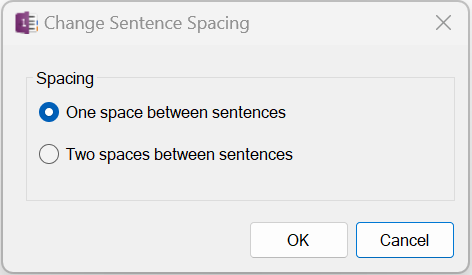
Expands or collapses whitespace between sentences, toggling between either one or two spaces between sentences. This affects the entire page.
Note that the sentence detection may not be perfect; it looks for periods (.), exclamation marks (!), and semi-colons (;) that follow alpha-numeric strings. This means it may change the spacing between abbreviations such as "H. G. Wells!"
Clear Background Color
Clears the highlight background color of text or the shading of table cells and also resets the text color to maintain readability against the default background. This is useful for quickly resetting the styling of content copied and pasted from the Web that uses a dark background when pasting onto a light page.
This affects the entire page or only selected content.
Remove Author Information
Removes all author information from the current page.
Remove Duplicate Pages
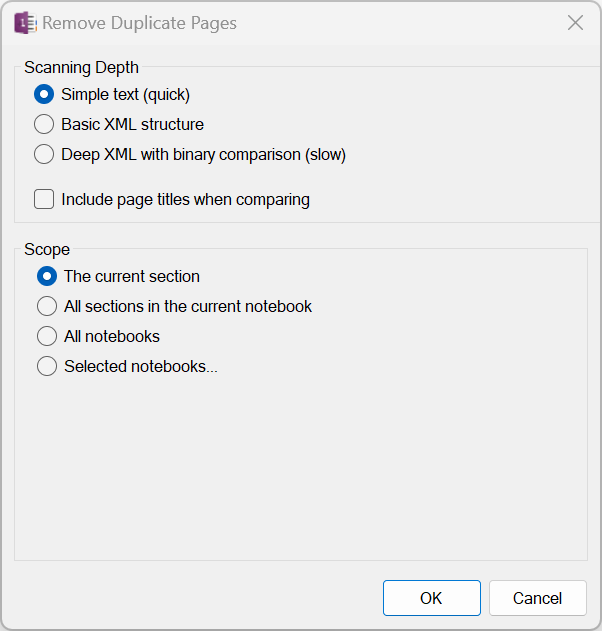
Scans a section, notebook, or set of notebooks for pages that are identical or merely similar, then lets you review and delete them from one results window. It finds two kinds of matches: pages whose content is byte-for-byte identical, and pages that are just close, scored locally (no AI, no network) against five weighted rubrics — vocabulary overlap, shared words, structure, writing style, and shared proper names/embedded images — grouped into two checkboxes ("Content similarity" and "Presentation similarity") so you can control what factors in and how long the scan takes. Results are grouped into cards, newest page first, with a colored similarity chip on every older page; hover a scored chip to see the same rubric-breakdown popup Compare Hierarchy uses, no click required.
For a complete description, see the extended → Remove Duplicate Pages page.
Remove Empty Lines
Removes empty headings with no content and "extra" empty lines between paragraphs, e.g., two or more lines get compressed down to one line. It also attempts to align indented and outdented blank lines with the surrounding content so that consecutive paragraphs can be collapsed below a shared heading.
Remove Hyperlinks
Removes all hyperlinks from the current page or the selected range.
Remove Indents
Removes indentation from the selected paragraphs.
Remove Ink
Removes all ink drawings and annotations from the current page.
Remove Paragraph Spacing
Resets line spacing to zero between all paragraphs and headings. This relates to the paragraph's "space before" and "space after" setting. It does not affect blank lines between paragraphs; see Remove Empty Lines for that.
Remove Pasted Citations
Removes citations that OneNote auto-generates when you paste screen clipping and parts of Web pages into OneNote, for example From < https://www....
Remove Tags
Removes all OneNote tags from the current page, except those that are associated with reminders.
Restore Container Widths
After manually setting the width of containers on a page, this command will reset the widths of all containers on the page to auto-size based on the content.
Show/Hide Time Stamps
Toggles the page date and time stamps under the title on the current page or all pages in the current section
Trim Whitespace
Trims trailing whitespace from the selected text or all text on the page.
Trim Leading Whitespace
Trims leading whitespace from the selected text or all text on the page.
#omwiki #omcommands
© 2020 Steven M Cohn. All rights reserved.
Please consider a sponsorship or one-time donation to support ongoing development
Created with OneNote.